Getting Your Backblaze B2 Application Key
File Transfer for Backblaze B2 connects with a key pair you create in your own Backblaze account: a Key ID and an Application Key. It takes about a minute.
This is for B2 Cloud Storage only
Backblaze sells two different products. This app works with B2 Cloud Storage, the service that stores files in buckets. It does not work with Backblaze Computer Backup for desktop backups. B2 application keys cannot access your Computer Backup files.
1. Open the Application Keys page
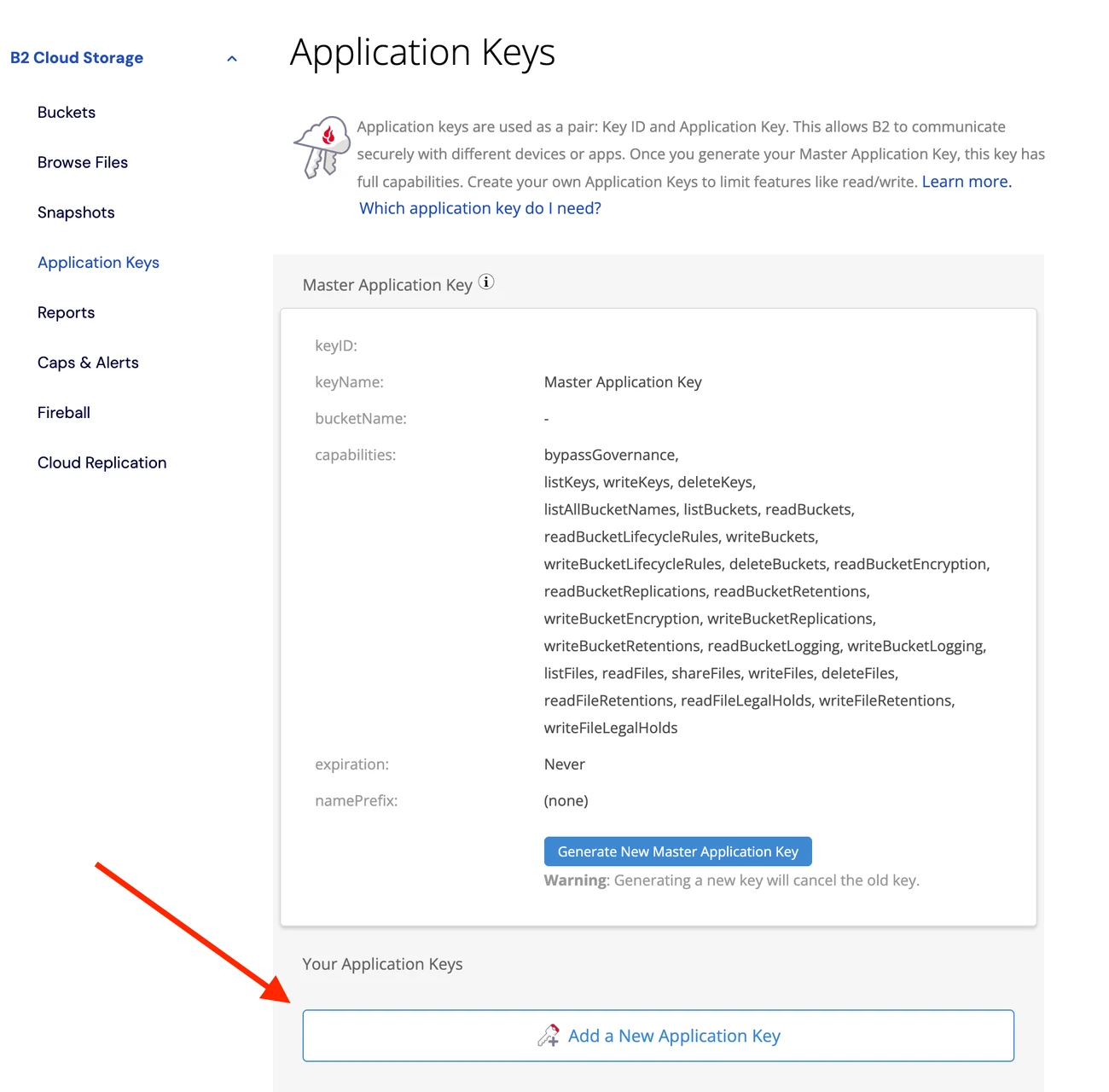
Sign in to Backblaze and go to secure.backblaze.com/app_keys.htm (B2 Cloud Storage ▸ Application Keys in the sidebar). Scroll down and click Add a New Application Key.
Ignore the Master Application Key at the top of that page. It can do far more than this app needs, including deleting buckets. Make a scoped key instead.
2. Name the key and set its access
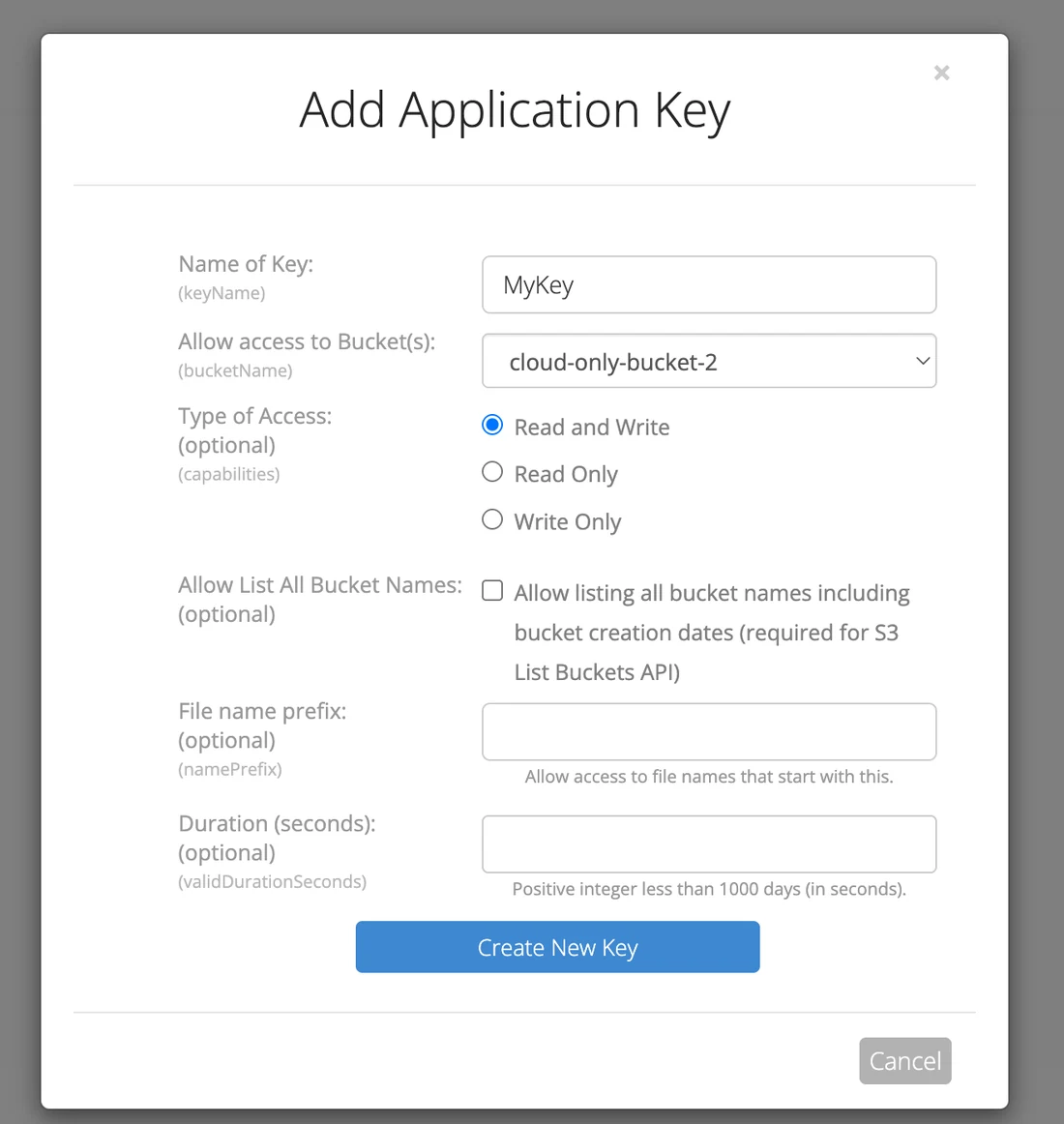
- Name of Key: anything you'll recognize later, such as Mac File Transfer.
- Allow access to Bucket(s): pick one bucket, or leave it set to all buckets if you want to browse everything.
- Type of Access: choose Read and Write. Read Only still lets you download, but uploads, renames, and deletes will fail.
- The remaining fields are optional. Leave them empty.
Click Create New Key.
3. Copy both values before you leave the page
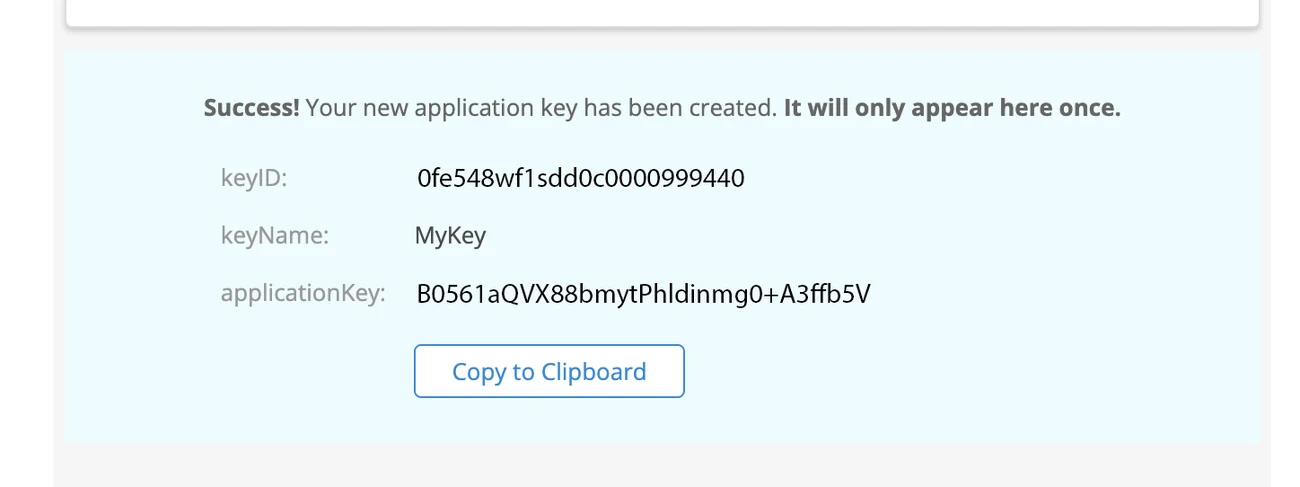
Backblaze now shows a keyID and an applicationKey. The application key appears only once. Save both values in a password manager before leaving the page. Otherwise, you will need to create a new key.
4. Enter them in the app
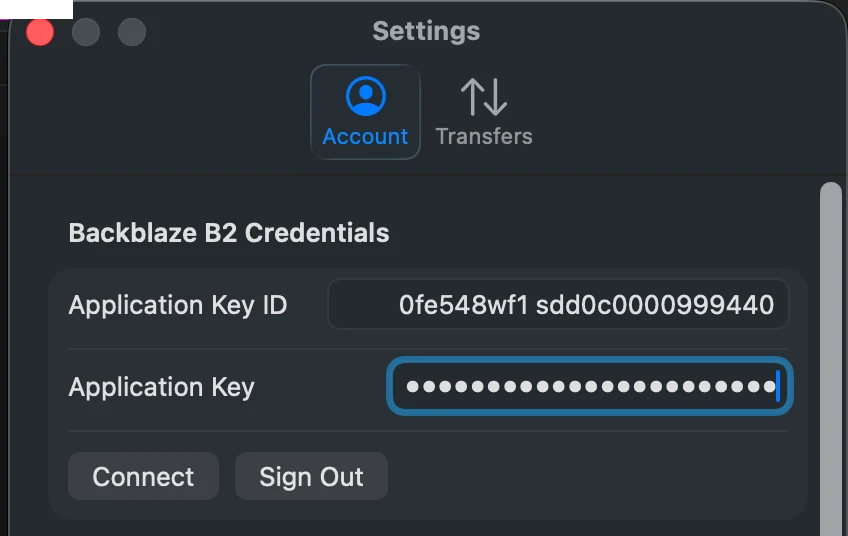
In File Transfer for Backblaze B2, open Settings ▸ Account. Paste the keyID into Application Key ID. Paste the applicationKey into Application Key, then click Connect. Your buckets will appear in the sidebar.
The credentials are saved in your Mac's Keychain and sent only to Backblaze. See the privacy policy.
If it doesn't connect
- Check for a stray space at the start or end of either value. Pasting from a note often brings one along.
- Make sure the two values aren't swapped. The Key ID is the shorter of the two.
- No buckets listed? The key may be scoped to a single bucket, or the account may have no buckets yet.
- Uploads failing on a key that downloads fine? It was created as Read Only. Create a new Read and Write key.
Still stuck? Send me the details and I'll help.